
Git Setup#

Note
If you use MacOS or Windows and prefer to work in a GUI, download and install GitHub Desktop. GitHub Desktop is not yet supported on Linux.
GUI - Graphical User Interface
How you download and install Git depends on your operating system.
MacOS
Choose one:
GUI - Download and install GitHub Desktop
Terminal - From the Getting Started - Installing Git section of Pro Git
If using a terminal, after installing see the Configure Git - Terminal Addition section below to configure Git.


Windows
Choose one:
GUI - Download and install GitHub Desktop
Terminal Git BASH - Download and and install Git for Windows. Git BASH is a terminal emulator that comes with Git for Windows. Although Git for Windows is not maintained by the Git developers, they recommend using it.
If using a terminal, after installing see the Configure Git - Terminal Addition section below to configure Git.
Terminal PowerShell
Warning
This is not recommended. There are too many things to download and install. Unless you are a die hard Windows user and a PowerShell Wizard, do not bother. Also, we have not tried this setup and cannot help troubleshoot.
Download and install the WinGet tool.
In the PowerShell command line, type:
winget install --id Git.Git -e --source winget
Download and install posh-Git
Please read the posh-Git README file and follow the instructions.
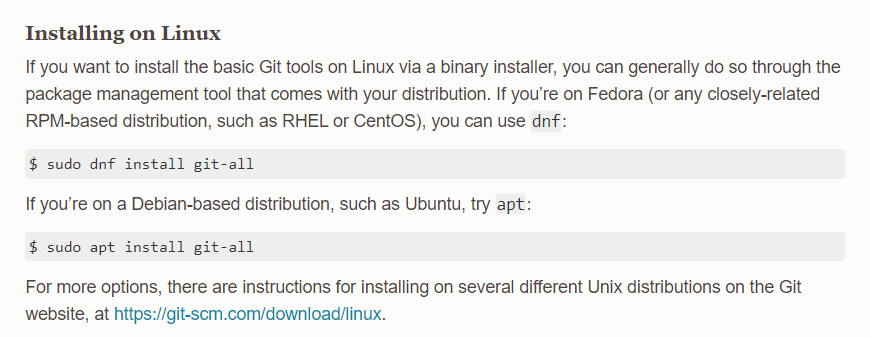
Linux
From the Getting Started - Installing Git section of Pro Git
Configure Git - Terminal addition#
The first time you start Git on your computer you have to configure your Git environment
Git comes with a git config tool that lets you control the configuration of many variables, including:
Setup your user name and email address. Git uses this information to uniquely identify you in your commits
Assign your text editor
You can view all your settings and where they come from using:
git congif --list --show-origin
You will probably have to hit Enter or the space bar to scroll through the list if your terminal is not large enough to see all the output on one screen. Type q to exit once you are at the end of the list.
If the output looks like a lot of gobbledygook to you, try:
git config -l
Again, you might have to hit Enter or the space bar to scroll through the list. Type q to exit when you are at the end of the list.
You! (Your identity) These settings have to be set for you to interact with GitHub.
Set your user name.
git config --global user.name "John Doe"
Replace John Doe with your user name.
Set your email.
git config --global user.email johndoe@example.com
Replace johndoe@example.com with the email linked to your GitHub account.
Note
Your Git username and GitHub username do not have to match, but your Git user email has to be linked to your GitHub account.