
GitHub Setup#
What is GitHub?#
GitHub is a web-based hosting service that manages Git repositories. GitHub is not Git. GitHub allows you to collaborate on the work in Git repositories.
Create a GitHub account if you do not already have one#
Go to github and sign up for an account

Choose your username and enter the email address you want linked to your GitHub account
Prove you are not a robot
Enter the confirmation code sent to the email address you provided
Sign in
After you sign in, you will land on your GitHub Dashboard/Home page. Feel free to explore the tutorials. When you follow people or repositories, their updates will show up on your Dashboard.
Add your profile#
Let people know who your are!
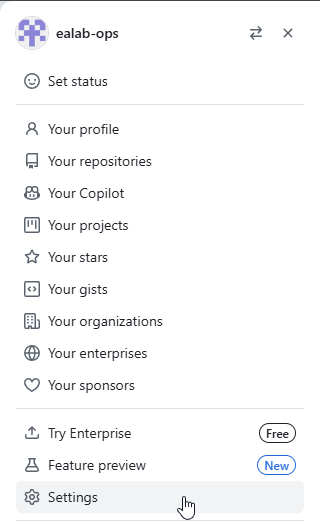
To to add your profile, click on your icon in the upper right corner

… and a menu of options will appear.
You can either choose Your profile, then click on the Edit Profile button on your profile page.

Or, you can choose Settings and edit your profile from there.
Account settings#
Your account settings allow you to manage your personal information, security, accessibility, and preferences, including email preferences, notifications, and more.
Personal Account Settings#
Public Profile: Customize your profile with an avatar, name, bio, location, and other details.
Appearance: Choose your preferred theme, emoji skin tone, tab size preference, and Markdown editor front preference.
Notifications: Configure the types of activity on GitHub that you want to receive notifications for and how you want these updates delivered.
Email Preferences: Manage your email addresses, including primary, backup, and commit emails, and control emails you receive from GitHub.
Password and Authentication: Set up two-factor authentication or passkeys.
And a lot more!
Take a look at your email preferences if you would prefer GitHub not publicly use your email address in commits.